Signing In to Gmail: Getting Past Verification, Adding a Second Account, and What to Check on a Delivered Inbox
Almost nobody is stuck on where the sign-in box is. They are stuck at the verification step with no phone attached, or trying to hold two mailboxes at once. Here is the order that works, plus the one setting worth checking on any inbox that arrived from somewhere else.
 Avery Bennett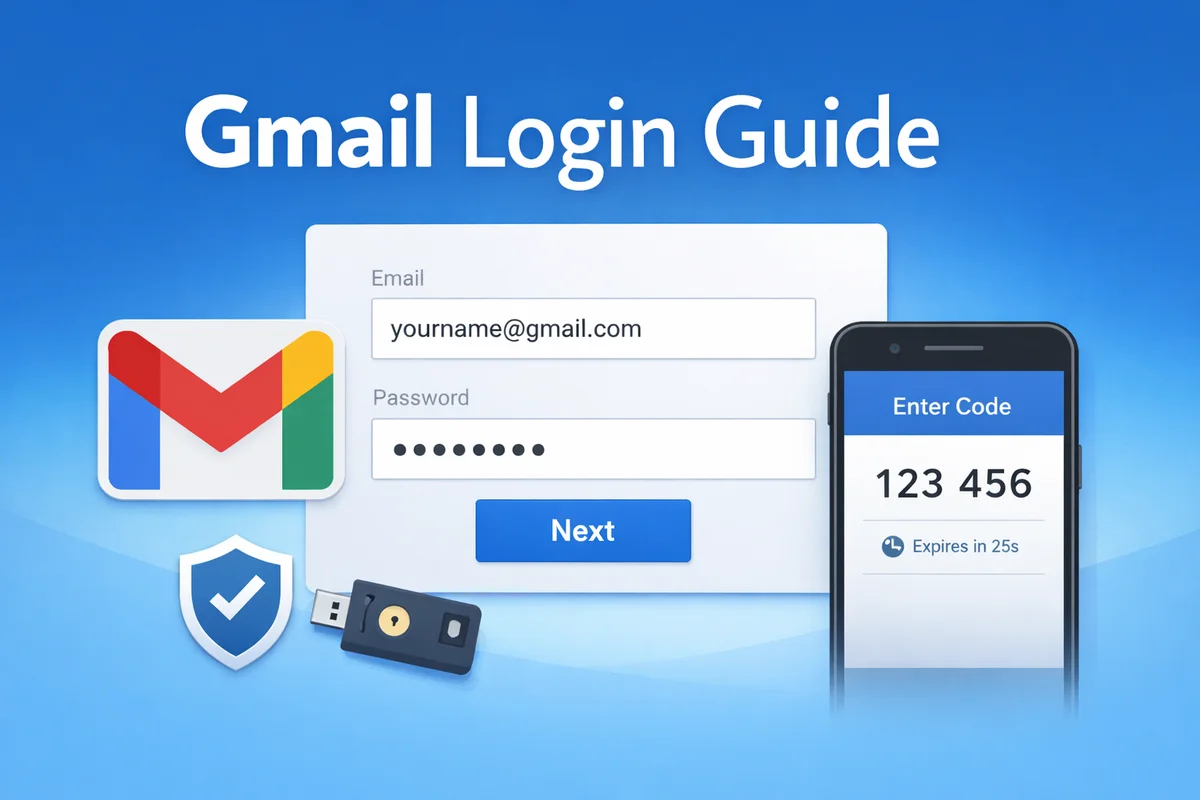
Search suggestions are unusually honest about where people actually get stuck. Ask Google how to log in to Gmail and two of the ten completions it offers are "without phone" and "without verification". Ask about Gmail login generally and the first thing it offers is "another account".
Neither of those is a problem with the sign-in form. This guide is arranged around the two things that actually stop people, and around one setting that matters on any inbox that reached you from somewhere other than your own signup.
Getting to the sign-in screen
Go to mail.google.com in any modern browser. If a Google account is already signed in there, it opens straight into that mailbox rather than showing you a form, which is itself the source of a lot of confusion.
Enter the full address, including the part after the at sign, and continue to the password. The two failures worth ruling out before anything else are a keyboard layout producing a different character than the one on the key, and a paste that carried a trailing space. Retype the password by hand once before concluding it is wrong.
The verification step, which is where most people actually stop
If two-step verification is switched on, and on most accounts it is, the password is not the last gate. Google will ask for a second proof and it will choose which one to offer, based on what the account has attached and what it thinks of the device you are on.
The usual options are a prompt on a signed-in phone, a code from an authenticator app, a code by SMS, a backup code, or a security key. If you are being offered a method you cannot complete, look for the option to try a different way rather than retrying the same one, because the alternatives are not always displayed by default.
Three things make this worse and are avoidable:
- Repeatedly requesting a new SMS. Codes arrive out of order and only the newest one works, so a queue of requests turns one delay into several failures.
- A new device, a new network and a new location at once. Each of those on its own is normal. All three together is the pattern Google treats as suspicious, and it is the reason the same credentials work at home and stall on a VPN.
- Nothing recoverable attached. If the only method on the account is a phone number you no longer have, there is no clever route around it. Recovery is a slow, evidence-based process and it is far easier to add a second method while you can still get in than to argue your way back later.
If the account came to you with a printed TOTP secret rather than a phone, that string is what generates the code. The 2FA generator here takes a secret key or an otpauth:// URL and produces the six-digit code in your browser. It is worth being precise about what that does and does not do: it is only useful when you hold the shared secret. For your own everyday mailbox, where the code comes off your own phone, it does nothing at all. Codes are time-based and roll roughly every thirty seconds, so read it and use it immediately.
Holding more than one account at a time
The top suggestion under "gmail login" is "another account", which tells you how many people are signing out to switch and back again.
You do not have to. Open the profile picture in the top right and add an account; Google keeps both signed in and switches between them. The limitation worth knowing about is that this is per browser profile, so both accounts share the same cookies, the same extensions and the same history.
If the accounts need to stay genuinely separate, use separate browser profiles rather than the account switcher. It is the difference between two mailboxes and two identities, and the switcher only gives you the first.
The one thing to check on an inbox you did not create
If the mailbox arrived from somebody else, there is a category of access that survives everything people normally do on handover, and almost nobody looks for it.
A passkey is a password-less sign-in route stored on a physical device. Google's own wording is blunt about the consequence: once a passkey exists, anyone who can unlock that device can reach the account. Google also advises against creating one on a shared device for exactly that reason. A passkey created before you took over is somebody else's device holding a key to your mailbox.
It has its own list, at the passkeys and security keys section of your Google account security settings, and it is removed from there and nowhere else. Google does not publish any statement about what changing a password does to an existing passkey, in either direction, which is the reason to open the list and look rather than to assume the password change covered it. Remove anything you did not create yourself, then add your own if you want one.
How often does this come up? Rarely enough that it is worth being specific. Counted across every live listing on this site, not one Gmail listing mentions a passkey, and neither does any listing mention a security key. Across the whole catalogue only eight listings mention one at all, three of them Facebook accounts selling it as a feature and the other five game accounts whose sellers forbid enabling one. So a passkey on a delivered Google account is not something you bought. It is something left behind, which is precisely why it is worth thirty seconds of your attention.
What the market charges for, which is not what you would guess
There is a clean signal in how the Gmail listings on this site are priced, and it says something useful about which parts of a Google login are actually scarce.
Measured against the shelf median today: listings offering IMAP access sit at close to four times it. Listings mentioning a recovery address sit at about twice. Listings including backup codes sit at about one and a half times. And listings mentioning an authenticator sit at roughly half the median, below the ordinary price of the shelf.
Read together, those four numbers say the same thing. Producing a six-digit code is not the valuable part; that capability is cheap and abundant. What costs money is a route back in when something goes wrong: a mailbox you can reach by protocol, an address that can receive a reset, a set of codes that works when the phone does not. Google closes IMAP by default and does not hand out second chances easily, and the prices are measuring exactly that scarcity.
The practical read for your own account is the same as the market's. Getting in today is the easy half. Attach the recovery address and store the backup codes now, while you are still signed in, because that is the part you cannot buy back later.
Sensible habits, briefly
- Add a recovery email and phone before you need them, and check once a year that both still reach you.
- Keep backup codes somewhere that does not depend on the phone, because the phone is the thing that will be missing.
- Use a password manager. Most repeated login failures are a wrong or mistyped password rather than anything Google did.
- On a shared or public machine, sign out properly and do not create a passkey on it.
- On an account that arrived from elsewhere, leave the recovery details alone for a few days after taking it over. A password, a phone number and a recovery address all changing within minutes of a new-device sign-in is the pattern that triggers a review.
For how webmail, IMAP and API access differ and which one a given account actually supports, see Gmail API, IMAP and webmail login differences. For the difference between a Google account and a Gmail address, which trips up more people than it should, see Google account versus Gmail account. If you are comparing what is actually on offer, the Gmail listings here disclose access method in the title.