Gmail में साइन इन करना: वेरिफिकेशन पार करना, दूसरा अकाउंट जोड़ना, और डिलीवर हुए इनबॉक्स में क्या जाँचें
लगभग कोई भी साइन-इन बॉक्स के स्थान पर अटका नहीं है। वे फोन अटैच किए बिना वेरिफिकेशन स्टेप पर अटके हैं, या एक साथ दो मेलबॉक्स संभालने की कोशिश कर रहे हैं। यहाँ वह क्रम है जो काम करता है, साथ ही वह एक सेटिंग जो किसी भी इनबॉक्स में जाँचने लायक है जो कहीं और से आया हो।
 Avery Bennett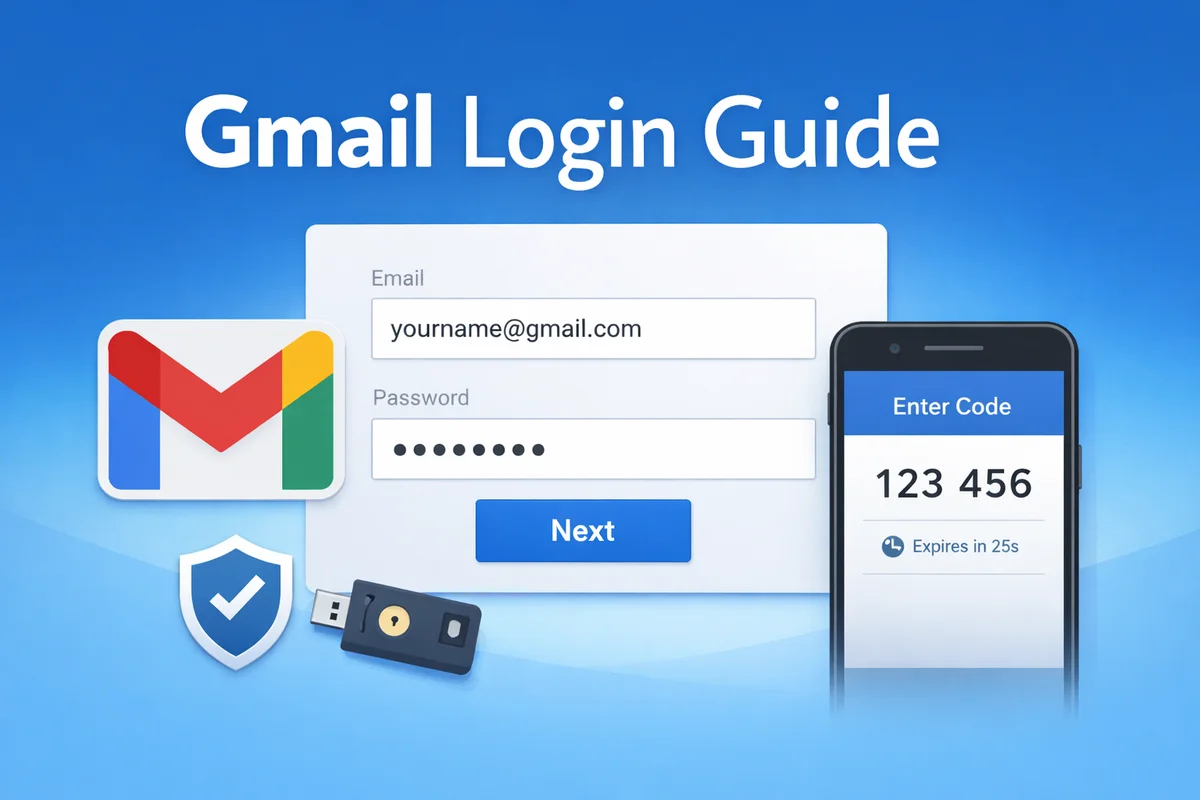
खोज सुझाव असामान्य रूप से ईमानदार होते हैं कि लोग वास्तव में कहाँ अटकते हैं। Google से पूछें कि Gmail में लॉग इन कैसे करें और इसके दस सुझावों में से दो "बिना फ़ोन" और "बिना सत्यापन" होंगे। Gmail लॉगिन के बारे में सामान्य रूप से पूछें और सबसे पहला सुझाव "दूसरा खाता" होगा।
इनमें से कोई भी साइन-इन फ़ॉर्म की समस्या नहीं है। यह गाइड उन दो चीज़ों के इर्द-गिर्द बनाई गई है जो वास्तव में लोगों को रोकती हैं, और एक ऐसी सेटिंग के बारे में है जो किसी भी इनबॉक्स पर मायने रखती है जो आपके अपने साइनअप के अलावा कहीं और से आया हो।
साइन-इन स्क्रीन तक पहुँचना
किसी भी आधुनिक ब्राउज़र में mail.google.com पर जाएँ। अगर वहाँ पहले से कोई Google खाता साइन इन है, तो यह आपको फ़ॉर्म दिखाने के बजाय सीधे उस मेलबॉक्स में खुलता है, जो अपने आप में बहुत भ्रम का स्रोत है।
पूरा पता दर्ज करें, जिसमें @ के बाद वाला हिस्सा भी शामिल है, और पासवर्ड पर आगे बढ़ें। किसी और चीज़ पर विचार करने से पहले दो विफलताओं को खारिज करना चाहिए: कीबोर्ड लेआउट जो कुंजी पर मौजूद अक्षर से अलग अक्षर उत्पन्न कर रहा है, और पेस्ट जिसमें पीछे की ओर एक स्पेस आ गया है। यह निष्कर्ष निकालने से पहले कि पासवर्ड गलत है, एक बार हाथ से पासवर्ड फिर से टाइप करें।
सत्यापन चरण, जहाँ अधिकांश लोग वास्तव में रुकते हैं
अगर दो-चरणीय सत्यापन चालू है, और अधिकांश खातों पर यह चालू है, तो पासवर्ड आखिरी द्वार नहीं है। Google दूसरा प्रमाण माँगेगा और वह चुनेगा कि कौन सा देना है, जो खाते से जुड़ी चीज़ों और आपके डिवाइस के बारे में उसके आकलन पर निर्भर करता है।
सामान्य विकल्प हैं: साइन इन किए गए फ़ोन पर प्रॉम्प्ट, ऑथेंटिकेटर ऐप से कोड, SMS द्वारा कोड, बैकअप कोड, या सुरक्षा कुंजी। अगर आपको ऐसा तरीका दिया जा रहा है जिसे आप पूरा नहीं कर सकते, तो उसी तरीके को दोबारा आज़माने के बजाय अलग तरीका आज़माने का विकल्प देखें, क्योंकि विकल्प हमेशा डिफ़ॉल्ट रूप से नहीं दिखाए जाते।
तीन चीज़ें इसे और बदतर बनाती हैं और इन्हें टाला जा सकता है:
- बार-बार नया SMS माँगना। कोड गलत क्रम में आते हैं और केवल सबसे नया कोड काम करता है, इसलिए अनुरोधों की कतार एक देरी को कई विफलताओं में बदल देती है।
- एक साथ नया डिवाइस, नया नेटवर्क और नया स्थान। इनमें से प्रत्येक अपने आप में सामान्य है। तीनों एक साथ वह पैटर्न है जिसे Google संदिग्ध मानता है, और यही कारण है कि वही क्रेडेंशियल घर पर काम करते हैं और VPN पर रुक जाते हैं।
- कोई पुनर्प्राप्ति विकल्प जुड़ा नहीं। अगर खाते पर एकमात्र तरीका वह फ़ोन नंबर है जो अब आपके पास नहीं है, तो इसके आस-पास कोई चतुर रास्ता नहीं है। पुनर्प्राप्ति एक धीमी, सबूत-आधारित प्रक्रिया है और जब आप अंदर जा सकते हैं तब दूसरा तरीका जोड़ना बाद में वापस आने के लिए बहस करने से कहीं आसान है।
अगर खाता आपके पास फ़ोन के बजाय मुद्रित TOTP सीक्रेट के साथ आया है, तो वह स्ट्रिंग ही कोड उत्पन्न करती है। यहाँ का 2FA जनरेटर एक सीक्रेट कुंजी या otpauth:// URL लेता है और आपके ब्राउज़र में छह अंकों का कोड बनाता है। यह सटीक होना ज़रूरी है कि यह क्या करता है और क्या नहीं: यह केवल तभी उपयोगी है जब आपके पास साझा सीक्रेट हो। आपके अपने रोज़मर्रा के मेलबॉक्स के लिए, जहाँ कोड आपके अपने फ़ोन से आता है, यह कुछ भी नहीं करता। कोड समय-आधारित होते हैं और लगभग हर तीस सेकंड में बदलते हैं, इसलिए इसे पढ़ें और तुरंत उपयोग करें।
एक साथ एक से अधिक खाते रखना
"gmail login" के तहत सबसे ऊपर का सुझाव "another account" है, जो बताता है कि कितने लोग स्विच करने के लिए साइन आउट करते हैं और फिर वापस आते हैं।
आपको ऐसा करने की ज़रूरत नहीं है। ऊपर दाईं ओर प्रोफ़ाइल फ़ोटो खोलें और एक खाता जोड़ें; Google दोनों को साइन इन रखता है और उनके बीच स्विच करता है। जानने लायक सीमा यह है कि यह प्रति ब्राउज़र प्रोफ़ाइल है, इसलिए दोनों खाते समान कुकीज़, समान एक्सटेंशन और समान इतिहास साझा करते हैं।
अगर खातों को वास्तव में अलग रहने की ज़रूरत है, तो खाता स्विचर के बजाय अलग ब्राउज़र प्रोफ़ाइल का उपयोग करें। यह दो मेलबॉक्स और दो पहचानों के बीच का अंतर है, और स्विचर केवल पहला देता है।
एक चीज़ जो आपके द्वारा नहीं बनाए गए इनबॉक्स पर जाँचनी चाहिए
अगर मेलबॉक्स किसी और से आया है, तो एक ऐसी पहुँच श्रेणी है जो वह सब कुछ बच जाती है जो लोग आमतौर पर हैंडओवर पर करते हैं, और लगभग कोई भी उसे नहीं देखता।
पासकी एक पासवर्ड-रहित साइन-इन मार्ग है जो भौतिक डिवाइस पर संग्रहीत होता है। Google का अपना शब्दांकन परिणाम के बारे में स्पष्ट है: एक बार पासकी मौजूद होने पर, जो कोई भी उस डिवाइस को अनलॉक कर सकता है वह खाते तक पहुँच सकता है। Google साझा डिवाइस पर एक बनाने के खिलाफ भी सलाह देता है, ठीक उसी कारण से। आपके द्वारा खाता लेने से पहले बनाई गई पासकी किसी और के डिवाइस पर आपके मेलबॉक्स की कुंजी रखती है।
इसकी अपनी सूची है, आपके Google खाते की सुरक्षा सेटिंग्स के पासकी और सुरक्षा कुंजी अनुभाग में, और इसे वहीं से हटाया जाता है और कहीं और से नहीं। Google इस बारे में कोई बयान प्रकाशित नहीं करता कि पासवर्ड बदलने से मौजूदा पासकी पर क्या प्रभाव पड़ता है, किसी भी दिशा में, यही कारण है कि यह मान लेने के बजाय कि पासवर्ड बदलने से यह कवर हो गया, सूची खोलकर देखना चाहिए। जो कुछ भी आपने खुद नहीं बनाया उसे हटा दें, फिर यदि चाहें तो अपनी खुद की जोड़ें।
यह कितनी बार सामने आता है? इतना कम कि विशिष्ट होना उचित है। इस साइट पर हर सक्रिय लिस्टिंग में गिनती करें, एक भी Gmail लिस्टिंग पासकी का उल्लेख नहीं करती, और न ही कोई लिस्टिंग सुरक्षा कुंजी का उल्लेख करती है। पूरे कैटलॉग में केवल आठ लिस्टिंग किसी एक का उल्लेख करती हैं, उनमें से तीन Facebook खाते हैं जो इसे एक सुविधा के रूप में बेच रहे हैं और बाकी पाँच गेम खाते हैं जिनके विक्रेता इसे सक्षम करने से मना करते हैं। इसलिए डिलीवर किए गए Google खाते पर पासकी वह नहीं है जो आपने खरीदा है। यह पीछे छोड़ी गई चीज़ है, और यही कारण है कि यह आपके तीस सेकंड के ध्यान के लायक है।
बाज़ार किसके लिए पैसे लेता है, जो आपके अनुमान के अनुसार नहीं है
इस साइट पर Gmail लिस्टिंग की कीमत कैसे तय की जाती है, इसमें एक स्पष्ट संकेत है, और यह कुछ उपयोगी बताता है कि Google लॉगिन के कौन से हिस्से वास्तव में दुर्लभ हैं।
आज की शेल्फ माध्यिका के मुकाबले मापा गया: IMAP एक्सेस की पेशकश करने वाली लिस्टिंग इसके लगभग चार गुना पर हैं। पुनर्प्राप्ति पते का उल्लेख करने वाली लिस्टिंग लगभग दो गुना पर हैं। बैकअप कोड शामिल करने वाली लिस्टिंग लगभग डेढ़ गुना पर हैं। और ऑथेंटिकेटर का उल्लेख करने वाली लिस्टिंग लगभग आधी माध्यिका पर हैं, जो शेल्फ की सामान्य कीमत से नीचे है।
एक साथ पढ़ने पर, ये चार संख्याएँ एक ही बात कहती हैं। छह अंकों का कोड बनाना मूल्यवान हिस्सा नहीं है; वह क्षमता सस्ती और प्रचुर है। जिस चीज़ पर पैसा खर्च होता है वह है कुछ गलत होने पर वापस आने का रास्ता: एक मेलबॉक्स जिस तक आप प्रोटोकॉल द्वारा पहुँच सकते हैं, एक पता जो रीसेट प्राप्त कर सकता है, कोड का एक सेट जो तब काम करता है जब फ़ोन नहीं करता। Google IMAP को डिफ़ॉल्ट रूप से बंद रखता है और दूसरे मौके आसानी से नहीं देता, और कीमतें ठीक उसी दुर्लभता को माप रही हैं।
आपके अपने खाते के लिए व्यावहारिक निष्कर्ष बाज़ार के समान है। आज अंदर जाना आसान आधा है। पुनर्प्राप्ति पता जोड़ें और बैकअप कोड अभी स्टोर करें, जब आप अभी भी साइन इन हैं, क्योंकि वह हिस्सा है जिसे आप बाद में वापस नहीं खरीद सकते।
समझदार आदतें, संक्षेप में
- पुनर्प्राप्ति ईमेल और फ़ोन ज़रूरत से पहले जोड़ें, और साल में एक बार जाँचें कि दोनों अभी भी आप तक पहुँचते हैं।
- बैकअप कोड ऐसी जगह रखें जो फ़ोन पर निर्भर न हो, क्योंकि फ़ोन ही वह चीज़ है जो गायब होगी।
- पासवर्ड मैनेजर का उपयोग करें। अधिकांश बार-बार होने वाली लॉगिन विफलताएँ Google द्वारा किए गए किसी काम के बजाय गलत या गलत टाइप किया गया पासवर्ड होती हैं।
- साझा या सार्वजनिक मशीन पर, ठीक से साइन आउट करें और उस पर पासकी न बनाएँ।
- कहीं और से आए खाते पर, लेने के बाद कुछ दिनों के लिए पुनर्प्राप्ति विवरण को अकेला छोड़ दें। नए डिवाइस साइन-इन के कुछ ही मिनटों में पासवर्ड, फ़ोन नंबर और पुनर्प्राप्ति पता सभी बदलना वह पैटर्न है जो समीक्षा को ट्रिगर करता है।
वेबमेल, IMAP और API एक्सेस कैसे भिन्न हैं और किसी दिए गए खाते में वास्तव में कौन सा समर्थित है, इसके लिए देखें Gmail API, IMAP और वेबमेल लॉगिन अंतर। Google खाते और Gmail पते के बीच अंतर के लिए, जो लोगों को जितना चाहिए उससे अधिक फँसाता है, देखें Google खाता बनाम Gmail खाता। यदि आप तुलना कर रहे हैं कि वास्तव में क्या पेशकश है, तो यहाँ की Gmail लिस्टिंग शीर्षक में एक्सेस विधि का खुलासा करती हैं।
Frequently Asked Questions
केवल तभी जब खाते में पहले से कोई और सत्यापन विधि जुड़ी हो: एक ऑथेंटिकेटर ऐप, बैकअप कोड का सेट, सुरक्षा कुंजी, या किसी दूसरे डिवाइस पर प्रॉम्प्ट जो अभी भी साइन इन है। दिए जा रहे तरीके को दोबारा आज़माने के बजाय, कोई अलग तरीका आज़माने का विकल्प देखें। अगर खाते में केवल वह फ़ोन नंबर जुड़ा है जिस पर अब आपका नियंत्रण नहीं है, तो कोई शॉर्टकट नहीं है, और रिकवरी एक धीमी, सबूत-आधारित प्रक्रिया बन जाती है।
आमतौर पर ऐसा इसलिए होता है क्योंकि साइन-इन से जुड़ी एक से ज़्यादा चीज़ें एक साथ बदल जाती हैं। नया डिवाइस, नया नेटवर्क और नई लोकेशन—ये सब मिलकर संदिग्ध लगते हैं, भले ही अकेले-अकेले हर चीज़ सामान्य हो। यही वजह है कि घर पर वही क्रेडेंशियल काम करते हैं, लेकिन VPN पर अटक जाते हैं। एक बार अपनी सामान्य सेटअप से साइन-इन करें और अकाउंट को स्थिर होने दें, आमतौर पर इससे समस्या हल हो जाती है।
ऊपर दाईं ओर प्रोफ़ाइल फोटो खोलें और दूसरा अकाउंट जोड़ें। Google दोनों को साइन इन रखता है और आपको स्विच करने देता है। ध्यान रखें कि यह प्रति ब्राउज़र प्रोफ़ाइल है, इसलिए दोनों अकाउंट एक ही कुकीज़, एक्सटेंशन और हिस्ट्री साझा करते हैं। अगर उन्हें वाकई अलग रखना है, तो अकाउंट स्विचर के बजाय अलग ब्राउज़र प्रोफ़ाइल का उपयोग करें।
यह एक TOTP सीक्रेट की, या otpauth:// URL को, आपके ब्राउज़र में मौजूदा छह अंकों के कोड में बदल देता है। यह तभी काम करता है जब आपके पास वह सीक्रेट हो, जो ऐसे अकाउंट के मामले में होता है जिसके साथ यह दिया गया हो। आपके अपने रोज़मर्रा के मेलबॉक्स के लिए, जहाँ कोड आपके फोन से आता है, यह कुछ नहीं करता। कोड हर लगभग तीस सेकंड में बदलते हैं, इसलिए जैसे ही कोई दिखे, उसे तुरंत इस्तेमाल करें।
केवल उस डिवाइस पर जिसे आप अकेले अनलॉक कर सकते हैं, यह एक वास्तविक सुविधा है और नियमित साइन-इन से पासवर्ड हटा देता है। साझा डिवाइस पर, नहीं। Google वहाँ एक बनाने की सलाह नहीं देता, क्योंकि एक बार पासकी मौजूद होने पर, जो भी उस डिवाइस को अनलॉक कर सकता है, वह खाते तक पहुँच सकता है। यही कारण है कि किसी भी ऐसे खाते की सूची जाँचें जो आपने खुद सेट नहीं किया है।
Google खाते की सुरक्षा सेटिंग्स में पासकी और सुरक्षा कुंजियों की सूची खोलें और जो कुछ भी आपने नहीं बनाया है उसे हटा दें, क्योंकि पासकी एक अलग पासवर्ड-रहित मार्ग है जो किसी और के डिवाइस पर मौजूद होती है। फिर पुष्टि करें कि रिकवरी पता और फोन नंबर आपके हैं, और बैकअप कोड का एक नया सेट जनरेट करें। Google इस बारे में कोई आधिकारिक बयान नहीं देता कि पासवर्ड बदलने से मौजूदा पासकी पर क्या असर पड़ता है, इसलिए मान लेने के बजाय सूची जांच लें।
क्योंकि वे दुर्लभ हिस्सा हैं। यहाँ Gmail लिस्टिंग्स के आधार पर मापा जाए तो, IMAP एक्सेस की कीमत शेल्फ मेडियन से लगभग चार गुना है और रिकवरी पता लगभग दोगुना है, जबकि ऑथेंटिकेटर का ज़िक्र करने वाली लिस्टिंग्स मेडियन के लगभग आधे पर हैं। कोड बनाना सस्ता और भरपूर है। जब कुछ गड़बड़ हो जाए तो वापस आने का रास्ता होना ही वह चीज़ है जिसके लिए बाज़ार असल में पैसा वसूल रहा है।
Avery Bennett
सोशल मीडिया सलाहकार और ग्रोथ हैकर। सभी आकार के ब्रांडों के लिए वायरल कंटेंट निर्माण और इन्फ्लुएंसर मार्केटिंग रणनीतियों में विशेषज्ञता।