Connecter Telegram à votre compte vendeur ne prend que deux étapes, et près de la moitié des gens s'arrêtent après la première.
Le bouton Connect vous connecte. Il n’active pas les notifications. Pour cela, une deuxième étape avec le bot est nécessaire, et 409 des 855 comptes ayant lié Telegram ne l’ont jamais faite. À noter aussi : le compte associé est celui ouvert dans votre navigateur, et annuler cette liaison nécessite un administrateur.
 Michael Chen
Two different things get called linking Telegram, and most people searching the phrase want the other one. This page is about connecting Telegram to a seller account here so it can send you order and ticket notifications. If you came looking for how to put your Telegram on a second phone or on a laptop, the next section settles that in half a minute and then this page moves on.
If you meant putting Telegram on another device
That is Telegram's own feature and it has nothing to do with this site. The device you want to sign in on generates a QR code, and a device already signed in scans it. On the phone that works, open Settings, then Devices, then Link Desktop Device, and point it at the code on the other screen. If two-step verification is set on the account, you can still be asked for that password after the scan.
One thing worth knowing before you do it, because it surprises people who are tidying up their sessions. For twenty-four hours after any login, Telegram refuses to let you end your other sessions. All three of the calls that could do it are blocked, including the one that would merely shorten how long other sessions last. There is no setting for it and no way to shorten the wait, so if you are signing in somewhere new in order to clear old sessions out, expect to come back tomorrow to finish.
Now the actual subject: it is two steps
Here is the part the old version of this page got wrong, and it got it wrong in the most costly direction by telling readers there was no bot step. There is, and it is not optional.
- Step one signs you in. The Connect button verifies who you are and records your Telegram identity against your account. That is all it does.
- Step two opens the channel. Until you have spoken to the bot, there is no conversation for it to write into. A bot cannot start a chat with someone who has never started one with it, so the site has nowhere to send the notification even though your account looks connected.
The gap between those two is not theoretical. Of the accounts here that have completed step one, 409 of 855 have never completed step two. Among sellers specifically it is 217 out of 543. Every one of those accounts shows as connected on the settings screen and receives nothing.
The screen tells you, briefly, if you are watching for it. After the sign-in it says the account is verified and that it is now connecting to the bot, and if that does not finish it asks you to send the bot a start message. That line is the entire difference between working and not working.
The walkthrough
Sign in to your seller account first, then open Shop Settings and find the Telegram Notification block.
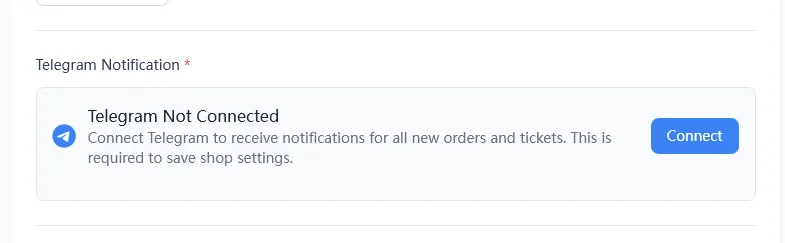
Press Connect and the block opens a verification panel with a Log in with Telegram button.
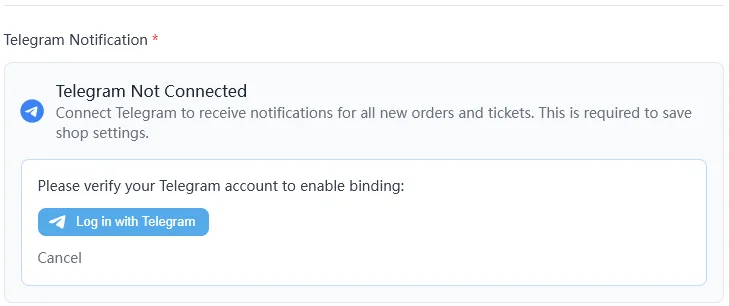
That button opens a popup owned by Telegram, on Telegram's own domain, which asks for your phone number in international format and then sends a confirmation into your Telegram app for you to approve.
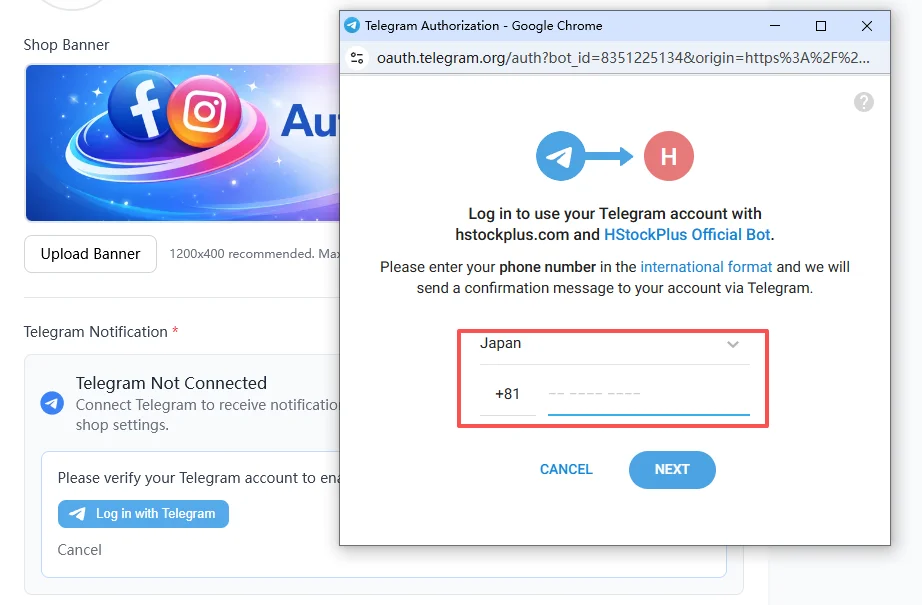
Approve it in Telegram, and then, when the screen asks you to, open the bot and send it a start message. That last instruction is step two. Do not close the tab before it.
Where your phone number goes
Since the popup asks for it, this is worth being exact about rather than reassuring about.
The number is typed into Telegram's page, not into this site's page, and Telegram uses it to find your account and send you the confirmation. What comes back to us afterwards is a small signed payload: your Telegram numeric id, your first and last name, your username, your photo URL, and a timestamp and signature we check. There is no phone number in it. Nothing in the sign-in path writes a phone number to your account record here, and what is stored is the numeric id, the username, the photo URL and, after step two, the chat id.
It binds whichever Telegram is open in your browser
This is the trap that turns a small mistake into a permanent one, and the settings screen does warn about it in a line that is easy to skim past.
The Log in with Telegram button uses the Telegram account currently active in that browser, whether from Telegram Web or the desktop app. It does not ask you which account you want. If you keep a personal account signed in on the computer and a business account on your phone, pressing the button on the computer binds the personal one.
So do the preparation before the click, not after. Open Telegram Web, sign out, sign in as the account that should own the shop, then reload the widget on the settings page and press the button. There is a control on that screen for reloading the widget after switching, which exists precisely because this goes wrong often enough to need one.
Getting it wrong is not something you can fix yourself
Three rules, and the first two are one-way.
- Once an account is bound, changing it to a different Telegram account is refused. Only an admin can move it. The screen says to contact an admin, and that is not a suggestion to try harder, it is the only route.
- One Telegram account cannot serve two accounts here. If the Telegram identity you are presenting is already attached to someone else, the attempt is rejected, and it matches on the username as well as the numeric id.
- Changing identity clears the bot connection. When an admin does move you, the stored chat id is wiped along with it, so step two has to be done again from scratch. A moved account that never redoes it is silent in exactly the same way a new one is.
None of this is dangerous if you check once before pressing the button. All of it is tedious afterwards.
Whether you have to do it at all depends on your account
The settings screen ships two different messages about this and both are real. Some accounts are told that connecting is required in order to save shop settings; others are told Telegram is optional and offered as a convenience. Which one you see is a property of your account, so believe your own screen rather than any guide, this one included.
Choosing where notifications land
Below the connect block there is a ticket notification channel with three settings: Telegram, Email, or automatic. Almost everyone is on automatic, which is the default and which means Telegram is used when it is available.
Two things follow that are worth knowing before you change it. Choosing Telegram explicitly is what suppresses the email copy; leaving it on automatic can send both. And if your account was created through Telegram rather than with a real email address, there is no email copy to fall back on at all, because the address on file is a placeholder that no mail can reach. Around a hundred accounts here are in that position. For them, step two is not a convenience, it is the only channel that exists.
Connected, but nothing arrives
In order of how often it is the answer:
- Step two was never done. Open the bot and send it a start message. If it replies confirming the connection, it worked. This is the cause roughly half the time.
- You bound the wrong account. Check which Telegram account was signed in to your browser at the time. If it was the wrong one, that needs an admin.
- Your notification channel is set to Email. Set it back to Telegram or automatic.
- The binding timed out. The screen says so when it happens; reload the page and start again rather than assuming it took.
- You blocked or deleted the chat with the bot. Unblock it and send start again, because the site has nowhere to write once the conversation is gone.
One naming rule that gets shops banned
Unrelated to the connection but on the same screen, so it belongs here. Your shop name must not be your Telegram username. Using your Telegram handle as the shop name is not allowed and can get the shop banned. The same screen also rejects contact details in the shop name generally. Given that most sellers arrive at this page in order to connect Telegram, it is the easiest rule on the site to break by accident.